Rescue Lost Commits with Git Reflog After a Bad Rebase or Reset
A hard reset or a rebase gone wrong rarely deletes anything for good. Learn how the reflog tracks every move of your branches and how to bring lost commits back safely.
Contents
Few moments in a developer's week feel worse than running a command and watching your commits vanish. A hard reset to the wrong commit, an interactive rebase that dropped the wrong line, a branch deleted a little too eagerly. The good news is that git reflog almost always has your back, because Git is far more reluctant to forget than its porcelain suggests.
This article explains what the reflog records, how to read it, and the safe sequence for bringing lost work back without making things worse.
What git reflog actually records
Every branch name is just a pointer to a commit. Each time that pointer moves, through a commit, reset, rebase, merge, checkout or pull, Git writes a line to a local journal called the reference log. HEAD has its own reflog too, which records every switch between branches and every detached checkout.
Commits themselves are not deleted when a branch stops pointing at them. They become unreachable, and an unreachable commit survives until garbage collection prunes it. By default reflog entries are kept for 90 days, and entries for unreachable commits for 30. That gives you a generous window to change your mind.
Reading the output
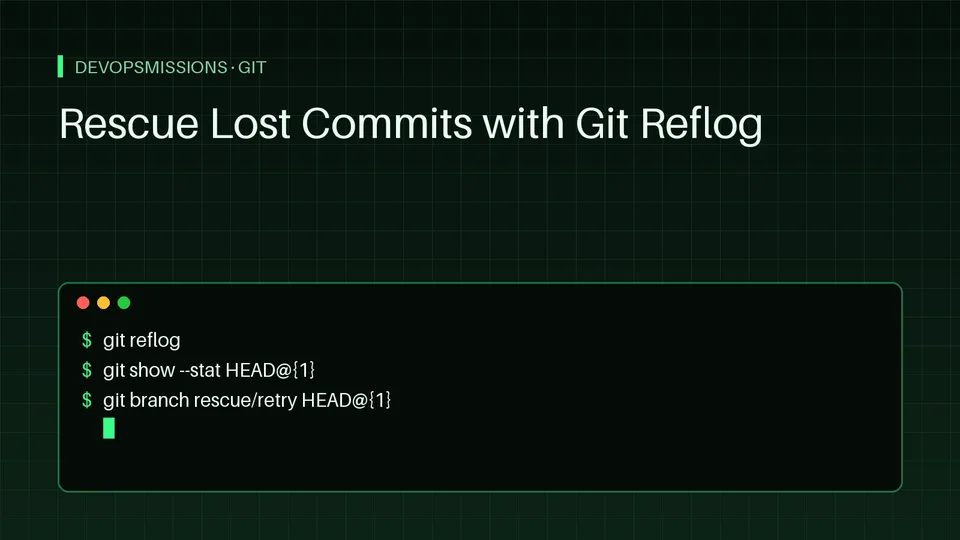
git reflog
# 3f9c2ab (HEAD -> main) HEAD@{0}: reset: moving to HEAD~3
# 8d41e07 HEAD@{1}: commit: Add retry with jitter to the payment client
# 52be910 HEAD@{2}: commit: Log the upstream request id
# a7c03f4 HEAD@{3}: commit: Extract the HTTP client into its own module
# 3f9c2ab HEAD@{4}: checkout: moving from feature/retry to main
Read from top to bottom: the newest move is first. HEAD@{1} is where HEAD was one move ago. In the example, the reset in entry zero threw away three commits, and entry one still names the last of them.
Time-based references
Reflog entries also carry timestamps, so you can address them by time instead of by position. main@{yesterday} is where main pointed a day ago, and HEAD@{2.hours.ago} is where HEAD was two hours ago. Add --date=iso to git reflog to print the exact time of every entry. During a messy afternoon this is often the quickest way to find the last moment everything still worked, because you remember when things broke far better than how many commands you ran since then.
Rescue lost commits after a hard reset
The safest pattern is to look first, then create a branch at the old position, and only then decide what to do with it. A branch costs nothing and makes the commits reachable again, so garbage collection can no longer touch them.
git show --stat HEAD@{1}           # is this the work I lost?
git log --oneline HEAD@{1} -5      # what came just before it?
git branch rescue/retry HEAD@{1}   # make it reachable again
git switch main
git reset --hard rescue/retry      # only if main should move back
Notice that the first three commands are read-only or purely additive. Nothing is lost if you picked the wrong entry: delete the branch and try the next one.
Undo a rebase that went wrong
An interactive rebase rewrites a series of commits, and a dropped or badly squashed line can remove work silently. The reflog of the branch itself, not only HEAD, keeps the position from before the rebase started:
git reflog show feature/retry
# 1c2d3e4 feature/retry@{0}: rebase (finish): refs/heads/feature/retry onto 3f9c2ab
# 9a8b7c6 feature/retry@{1}: commit: Add retry with jitter to the payment client

git branch before-rebase feature/retry@{1}
git range-diff before-rebase...feature/retry
git range-diff compares the two versions of the series commit by commit and shows exactly what the rebase changed. If the old version is better, reset the branch to before-rebase. Git also leaves ORIG_HEAD pointing at the pre-rebase tip, which is handy right after the fact.
Recover a deleted branch
Deleting a branch removes its reflog as well, but HEAD's reflog still remembers every commit you checked out while working on it. Search it for the branch name:
git reflog | grep -i "feature/retry"
git branch feature/retry 8d41e07
When the reflog cannot help
The reflog is local and personal. It does not travel with git push or git clone, so a colleague's lost work lives only in their own clone. It also does not know about changes that were never committed. For staged but uncommitted files there is a last resort:
git fsck --lost-found
# dangling blob 4b825dc642cb6eb9a060e54bf8d69288fbee4904
git show 4b825dc642cb
Dangling blobs have no file names, so recovery is tedious. The real lesson is to commit early and often on a local branch; a messy history is easy to clean up later, but missing work is not.
Habits that keep history safe
Create a backup branch before any rebase:
git branch backup/$(date +%s).Prefer
git push --force-with-leaseto a plain force push.Use
git reset --keepinstead of--hardwhen you only want to move the branch.Never run garbage collection with an expiry of now during an incident.
Git rarely loses committed work. People lose track of where it is.
The official git reflog documentation covers every option, including expiry settings and the @{n} syntax used above.
If you want to practise this before you need it, the Git track in DevOpsMissions has whole missions built around broken rebases, detached heads and deleted branches. See all mission tracks to pick a starting point.